A mass order is how you place many SMM orders at once instead of one at a time. On most panels it is a raw text box. On Nitro it is a cart. The difference sounds small and it is not, because the text box version is where most bulk ordering mistakes, lost money and support complaints come from.
Here is how both work, honestly, including the one situation where the old way is still better.
What is a mass order on an SMM panel?
Placing orders one at a time is fine when you need one thing. It stops being fine when you are managing several accounts, running a campaign across platforms, or reselling to clients. Choosing a platform, picking a service, pasting a link and setting a quantity thirty separate times is slow and error prone.
So panels built mass ordering. The traditional version, which most panels still use, is a single text area where you type one order per line in a fixed format: the service ID, the link, and the quantity, separated by delimiters. Something like 1044|https://instagram.com/yourpage|1000, repeated line after line, then one submit button.
Why the traditional mass order box fails so often
The paste box format has four problems, and anyone who has used one has met at least three of them.
You need to know the service IDs. Every service on the panel has a numeric ID, and the box expects you to look each one up from a catalogue of hundreds or thousands and type it correctly. Type 1044 when you meant 1404 and your follower budget just bought views on the wrong platform.
There is no checking before submission. The box takes what you paste. A broken link, a quantity below the service minimum, a service that was delisted last week: on most panels you find out after the money has left your balance, and sometimes you do not find out at all.
Failures are silent and refunds are manual. When line 14 of your 30 lines fails, many panels simply skip it or mark it failed in your history. Whether you get that money back, and whether you have to open a ticket to get it, depends on the panel. Chasing refunds line by line is where the time you saved goes to die.
One formatting slip breaks the batch. A missing delimiter, a stray space, a link with a tracking parameter on the end. The format is rigid because a machine parses it, and the machine's error messages were not written for humans.
None of this means panels with mass order boxes are dishonest. The box exists because it is easy to build. But easy to build and easy to use are different things, and the person absorbing the difference is you.
How bulk ordering works on Nitro
We built ours as a cart, the same pattern you already know from shopping online.
On the order page there is a toggle: Single and Bulk. Switch to Bulk, and every service tier becomes tappable. Tap what you want, it goes into a cart. Add up to 50 orders across any mix of platforms and services, each with its own link and quantity, then review the whole cart, see the full cost against your wallet balance, and submit once.
No service IDs to look up, because you are tapping the actual service. No format to get right, because there is no format. And each line is checked as you build it rather than after you pay.
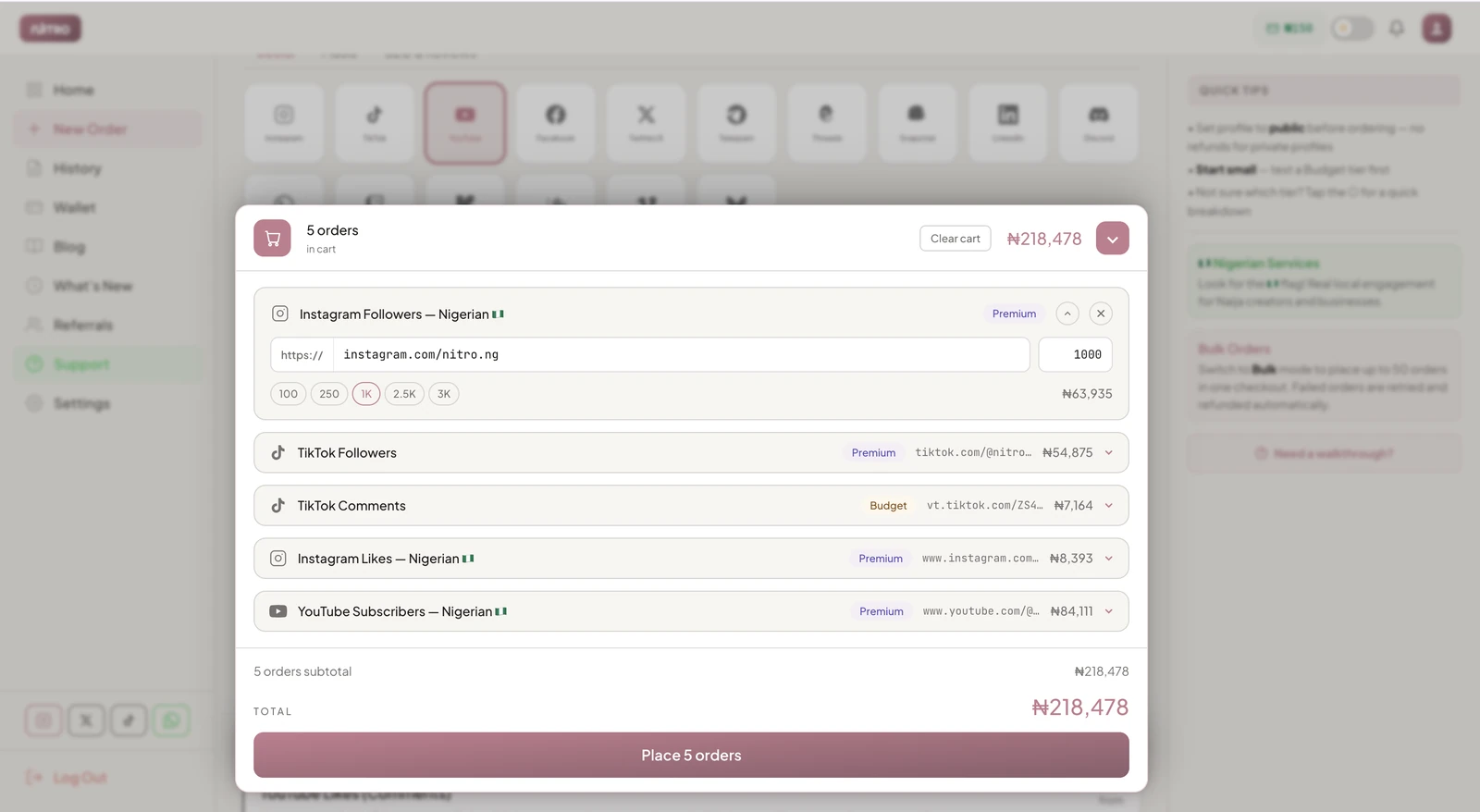
Then the part that matters most: if an order in your batch fails, it is retried automatically, and if it still cannot start, the money returns to your wallet as spendable credit on its own. No ticket, no chasing, no silent losses. Each order in the batch also tracks individually in your history, start count, current count and target, so a 30 order campaign is 30 visible progress bars rather than one mystery.
Mass order box against bulk cart, side by side
| Feature | Traditional mass order box | Nitro bulk cart |
|---|---|---|
| How you add orders | Type service ID, link, quantity per line | Tap services, paste links |
| Service selection | Look up numeric IDs yourself | Pick from the visible catalogue |
| Validation | After submission, if at all | As you build the cart |
| When a line fails | Often silent, refund varies by panel | Retried automatically, then refunded to your wallet |
| Campaign tracking | Separate rows scattered through the order ledger | One reviewed batch at checkout, then an individual progress bar per order |
| Batch size | Often hundreds of lines | Up to 50 per checkout |
| Learning curve | You need the format and the ID list | If you have used any online cart, none |
When the old way genuinely wins
Honesty over salesmanship: the paste box still has one real advantage, and it is the last row of that table.
If you are a heavy reseller placing hundreds of orders at once, a raw mass order box accepts a bigger paste than our 50 order cart, and at that volume you have probably memorised your service IDs anyway. The cap exists because validating and individually tracking every order in a batch is exactly what makes the cart reliable, and that has a practical ceiling.
For that kind of volume the better answer is not a bigger text box, it is an API, where your own system places orders programmatically without any box at all. Nitro has one, and if you are reselling at that scale, ask us about it on WhatsApp along with reseller pricing.
For everyone else, which in practice means anyone placing 2 to 50 orders at a time, the cart is faster, safer and does not require you to keep a spreadsheet of service IDs to avoid burning money on typos.
How to place your first bulk order
The full walkthrough with screenshots is in our help centre at how to use bulk orders. The short version: fund your wallet, toggle Bulk on the order page, tap services into the cart, paste your links, review, submit once. Orders start on their own schedules and you watch them all from history.
If you are comparing panels for bulk work, the honest test is the same one we recommend for everything else: run a small batch before you trust anyone with a big one. Place five orders, deliberately include one difficult case, and watch what happens to it. A panel's bulk system shows you what it is made of when something fails, not when everything works. How to test an SMM panel before you commit real money covers that method properly.
Bulk mode is live for every Nitro account at no extra cost. Fund from ₦1,000 at nitro.ng and the toggle is waiting on the order page.